Help center

Everything you need to use Ticket Poster

This page covers the full flow: exporting a compatible CSV, choosing the right source tool, reviewing mappings when needed, customising the poster, and downloading preview or print-ready files.

Start here

The fastest path from CSV to poster

If you only read one section, read this one. It matches the actual dashboard flow.

Step 1

Choose the right source tool

In the dashboard, pick Linear, Jira, Notion, Trello, or Other before uploading. Linear uses the dedicated parser. The other sources use universal CSV import with column review when needed.

Step 2

Upload a fresh CSV

Use a direct export from your tool. If you just want to explore the flow first, use the sample data button instead of uploading a real file.

Step 3

Set the poster scope

Choose the year and status to include, then pick horizontal or vertical layout. You can also adjust style, accent color, logo, and footer wording.

Step 4

Preview, then export

Preview downloads are available as JPG or PDF at 150 DPI with a watermark. Paid checkout always includes the A2 PDF at 300 DPI without watermark, and some orders can also add a rolled A2 poster before payment.

CSV requirements

What the app needs from your file

Required fields

  • Linear imports require columns compatible with ID, Title, Status, and at least one usable date column such as Completed or Created.
  • Jira, Notion, Trello, and Other imports work best when Title and Status are easy to detect or map.
  • A date field is strongly recommended so Ticket Poster can derive the correct year filter.

Format expectations

  • Upload CSV files only.
  • Export directly from the source tool whenever possible.
  • Keep the header row intact on the first import so the app can detect columns correctly.
  • Common comma-separated, semicolon-separated, and tab-separated exports are supported.

When mapping review appears

  • If the app is not confident about your columns, it opens the mapping review screen before import.
  • Confirm Title first, then Status, then one date field such as Created at, Updated at, or Due date.
  • This is normal for custom exports and for tools with non-standard column names.

Important:

If you exported from Jira, Notion, Trello, or another custom tool, make sure you switch the dashboard source tool before uploading. Leaving the wrong source selected is one of the easiest ways to get a failed import.

Poster setup

Customisation and downloads

What you can customise

  • Release year and ticket status
  • Horizontal or vertical A2 orientation
  • Style preset and accent color
  • Optional PNG or SVG logo
  • Optional footer wording with team name

What you can download

  • Preview JPG at 150 DPI with watermark
  • Preview PDF at 150 DPI with watermark
  • Final PDF at 300 DPI without watermark
  • Optional live-quoted A2 poster checkout
  • A2 true-size output for printing

Export guides

How to export CSV from each supported tool

Linear

Best when your work already lives in Linear. Use a filtered issue view when you only want a subset of tickets.

Official docs

Recommended steps

  1. Open the issue view, project, or custom view you want to export.
  2. Apply filters first so the CSV contains only the tickets you want on the poster.
  3. Use Cmd/Ctrl + K and search for "Export issues as CSV", or open the project/view dropdown and choose the same export action.
  4. Download the CSV and upload it with Linear selected as the source tool in Ticket Poster.

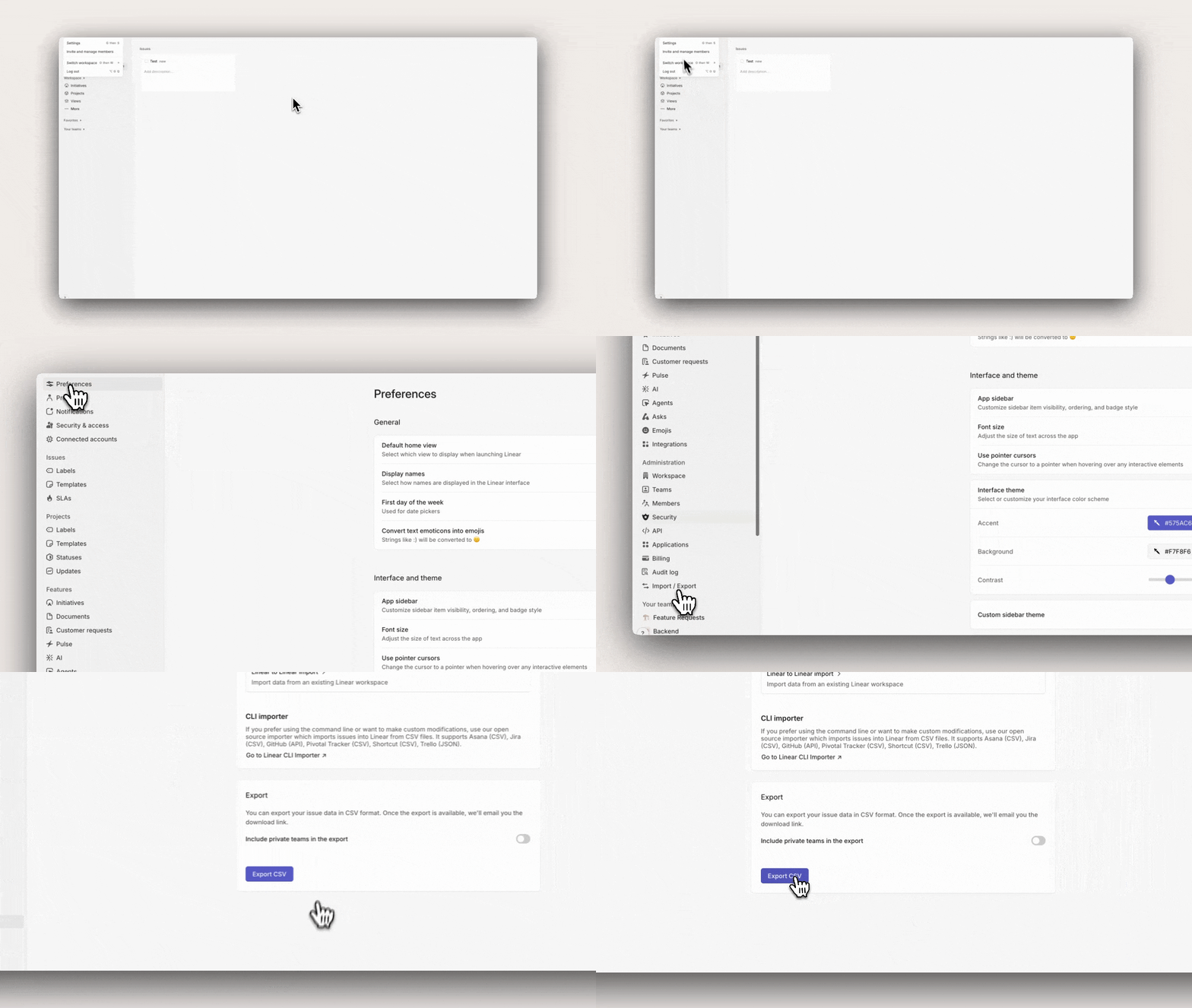
Example: Linear workspace export path

How to export a CSV from Linear

Important notes

  • Linear also documents a workspace export path in Settings > Administration > Import / Export for broader exports.
  • According to Linear docs, guest users cannot export CSV.
  • Linear docs also note issue-view export limits: members can export up to 250 issues, while admins or owners on Enterprise can export up to 2,000.

Notion

Best when your source of truth is a Notion database. Full-page databases are the safest export path.

Official docs

Recommended steps

  1. Open the database you want to export.
  2. Switch to a filtered view first if you only want a subset of items.
  3. Open the top-right menu and choose Export.
  4. Export as CSV, then upload the file with Notion selected as the source tool.

Important notes

  • Notion documentation indicates that full-page databases export as CSV.
  • If you export a normal page instead of a full-page database, Notion may show a Markdown and CSV export path instead.
  • For best results, make sure the database includes a clear title property and a status-like property.

Jira

Best when your tickets are tracked in Jira. Export from a filtered issue list so the CSV already matches your release slice.

Official docs

Recommended steps

  1. Open the Jira issue list from a project, board, or saved filter.
  2. Apply the filters you need before export.
  3. Choose Export and select CSV. Prefer the all-fields export when available so status and date fields stay available.
  4. Upload the CSV with Jira selected as the source tool in Ticket Poster.

Important notes

  • A broader export gives Ticket Poster a better chance to detect or map title, status, and date fields automatically.
  • Atlassian documents CSV export in UTF-8, which is useful to know if spreadsheet software displays encoding incorrectly.
  • If mapping review opens, confirm Title and Status first, then map Created at, Updated at, or Due date.

Trello

Best when your work is managed on a Trello board and CSV export is available in your workspace plan.

Official docs

Recommended steps

  1. Open the Trello board you want to use.
  2. Open the board menu, then go to Print, Export, and Share.
  3. Choose Export as CSV.
  4. Upload the file with Trello selected as the source tool in Ticket Poster.

Important notes

  • Atlassian documents board CSV export for Premium workspaces.
  • Trello docs note that board CSV export does not include archived cards by default.
  • If you need archived cards too, Trello documents a URL-based CSV export pattern by adding .csv to the board URL.
  • Trello Inbox cannot be exported to CSV.

Other CSV tools

If your work tracker can export a flat CSV, you can still try it even when it is not one of the preset tools.

Recommended steps

  1. Export a CSV from your tool and keep the column headers.
  2. Choose Other as the source tool before uploading.
  3. Upload the file and review the mapping screen if it appears.
  4. Confirm Title first, then Status, then at least one useful date field.

Important notes

  • Custom tools usually work best when the CSV includes title, status, created date, updated date, due date, URL, or external ID columns.
  • If the app cannot confidently map the title column, it will pause import and ask for review.
  • A usable date field is what makes the year filter meaningful.

Troubleshooting

Common questions and blockers

Why does my CSV fail to import?

The most common reasons are: the source tool is set incorrectly, the file is not a CSV, the export is empty, or the CSV is missing the core columns the app needs. Start with a fresh export directly from the source tool.

Why is the year filter wrong or empty?

Ticket Poster builds the year filter from dates found in the CSV. Linear needs Completed or Created. Other tools work best with Created at, Updated at, or Due date. If no usable dates are present, the detected year can be incomplete.

Why did I get a mapping review screen?

That screen appears when the universal importer is not confident enough about the column mapping. Confirm the Title column first, then Status, then one date field. After that, the rest of the import flow is normal.

What if I do not see a CSV export option in my tool?

This is usually a permission or plan limitation. Linear restricts guest export. Trello restricts board CSV export by plan. Workspace-wide exports in many tools may also require admin access.

Can I test the product without using real company data?

Yes. The dashboard has a sample data option so you can validate the import, preview, and download flow before using a real CSV.

What can I change before exporting?

You can choose the year and status, switch between horizontal and vertical A2 layout, pick a style preset, adjust the accent color, upload a logo, and customise the footer wording.

What is the difference between preview and print-ready downloads?

Preview downloads are 150 DPI and watermarked, which is useful for quick review. Print-ready export is a 300 DPI, A2 true-size PDF with no watermark. If the print offer is available for your order, you can also add a live-quoted physical A2 poster during checkout.

How does physical print checkout work?

Choose PDF only or PDF plus A2 poster in the dashboard. For physical prints, enter shipping details first so Ticket Poster can fetch a live quote before sending you to Stripe. After payment, the PDF is unlocked immediately and the print order status is shown on the download page.